
User Guide
How to Use Espresso FlowCon
Dial in your espresso using roast level or Agtron color value. This guide walks you through every feature in the app.
10 min read · 27 steps
User Guide
Dial in your espresso using roast level or Agtron color value. This guide walks you through every feature in the app.
No steps match your search. Try a different keyword.
In the Brew tab, use the segmented picker to choose Roast Level (if you know the general roast) or Agtron (if you have an Agtron number from a color meter or roaster spec sheet).
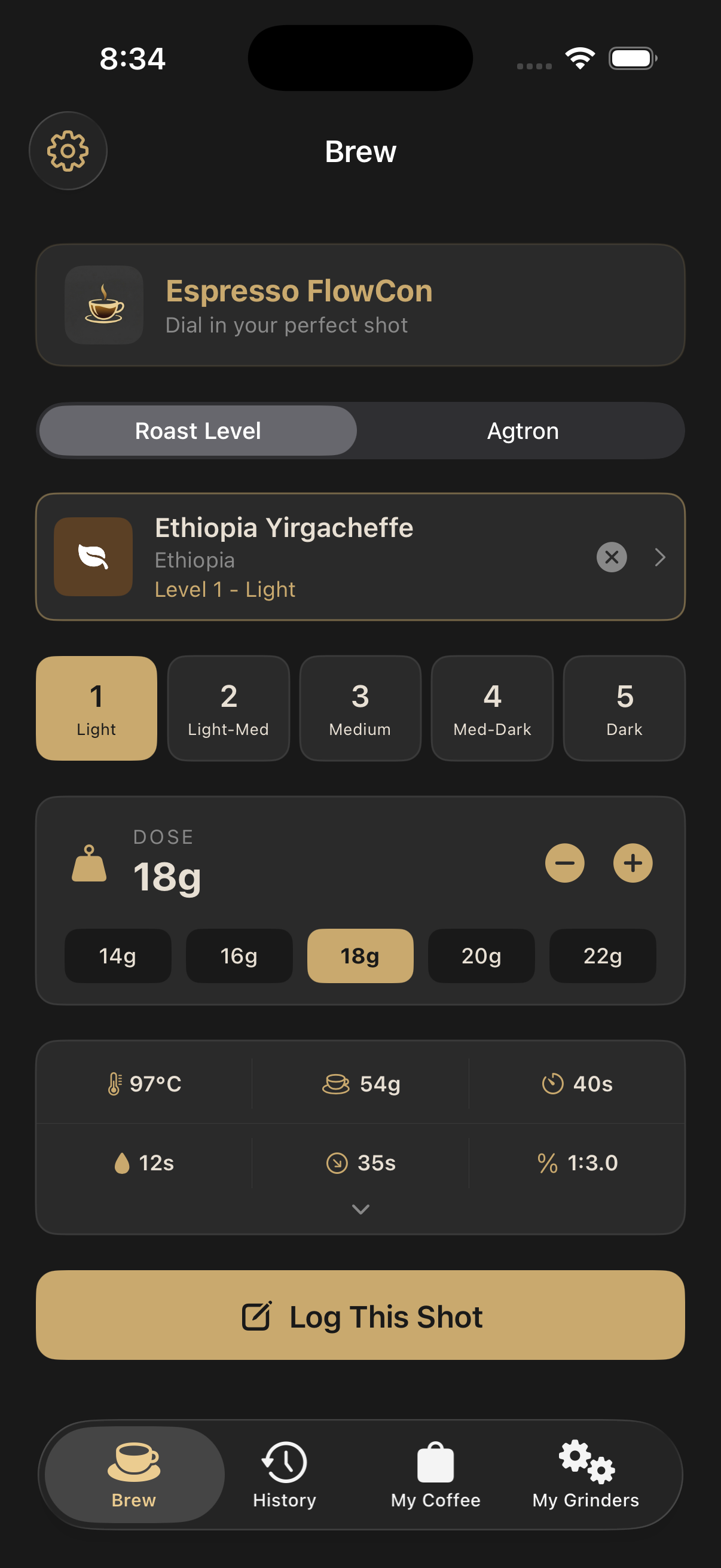
When using Agtron mode, choose SCA (25–95) for the modern Specialty Coffee Association scale, or Common (0–150) for the traditional Agtron scale found on older equipment and some bag labels.
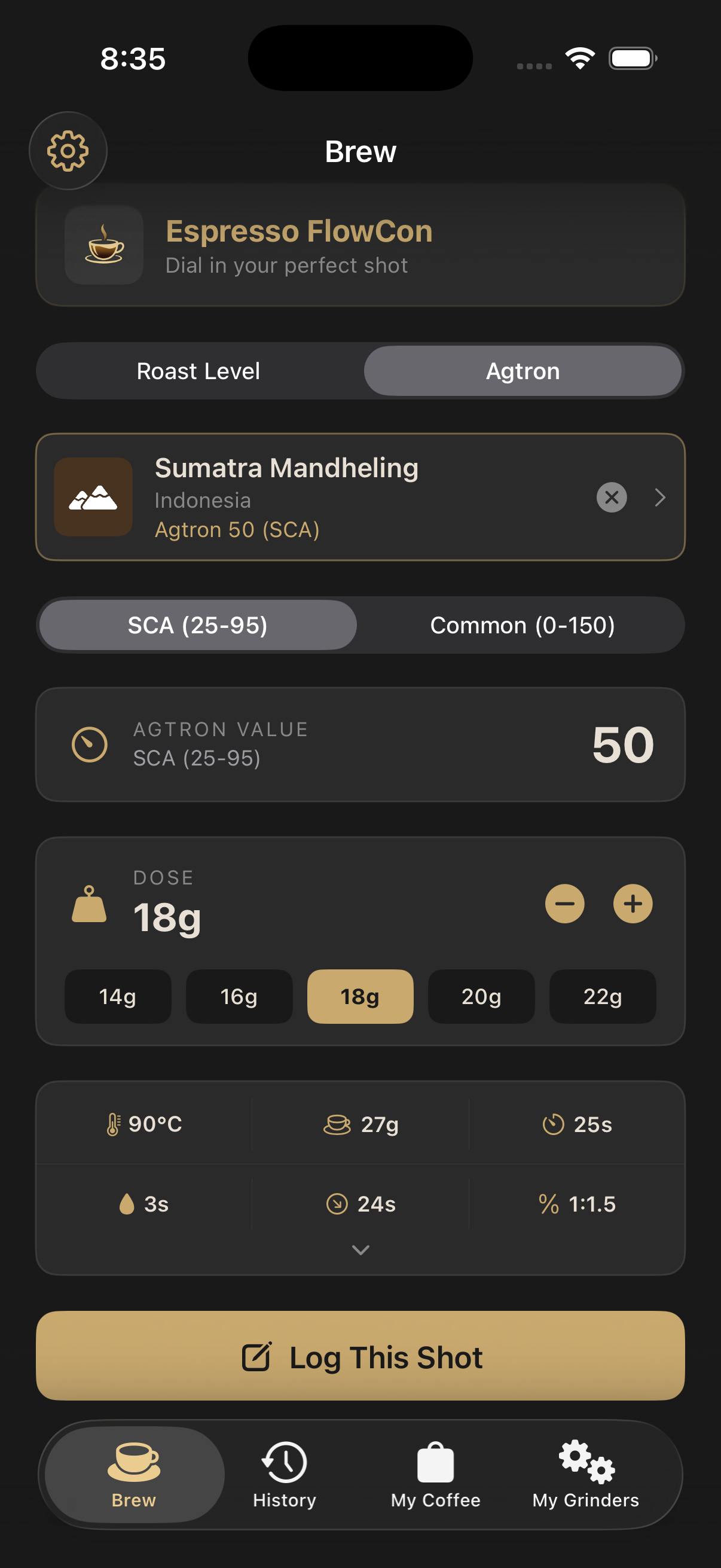
Use the dose picker to set how many grams of coffee you're using. The yield is automatically calculated from your dose and the selected ratio.
Not sure which mode to use? If your bag says "Medium Roast", use Roast Level. If it lists an Agtron number, switch to Agtron.
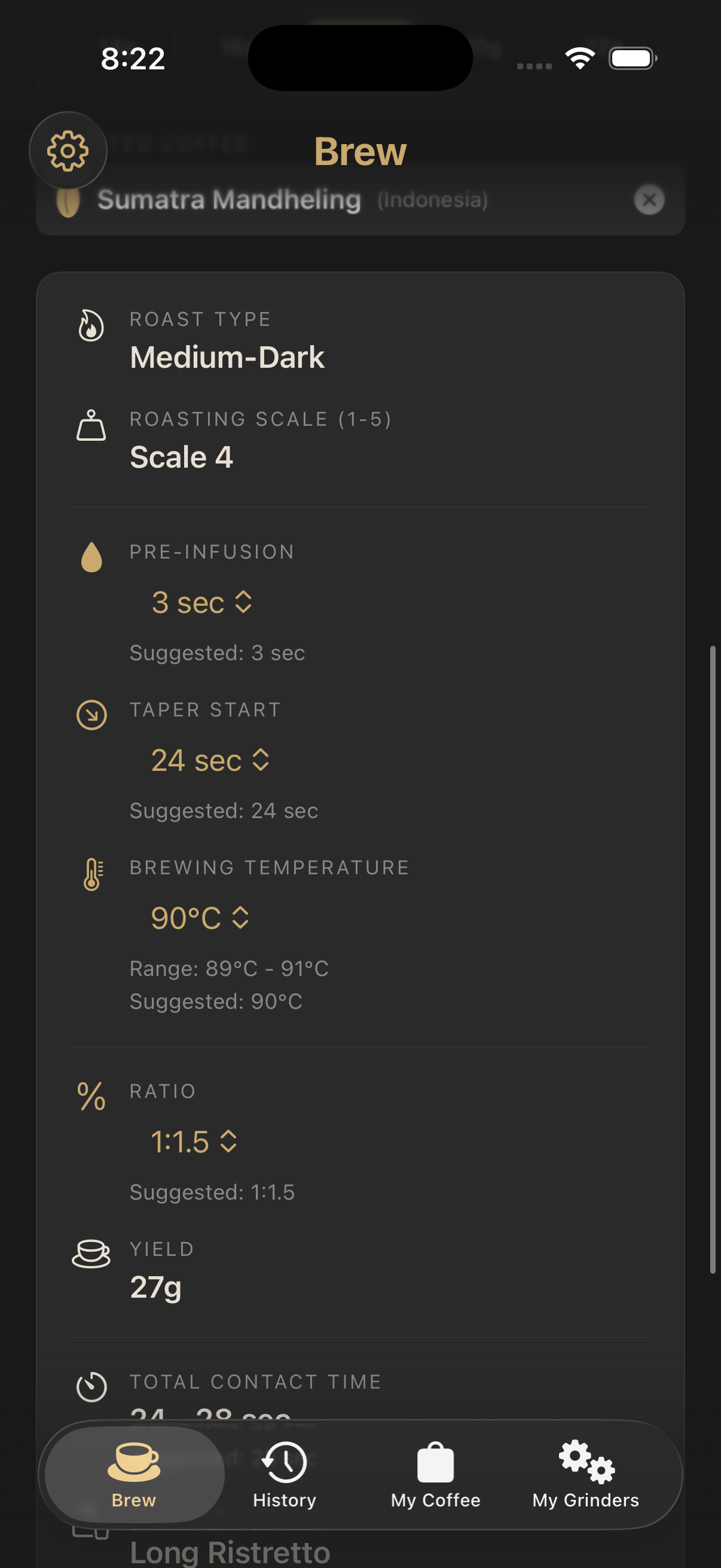
The results card shows suggested settings: pre-infusion time, taper start, brewing temperature, ratio, yield, contact time, and shot style. Each value is a starting point based on the roast profile.
Pre-infusion, taper start, temperature, and ratio can all be adjusted using their pickers. Changes update the yield automatically. The suggested defaults are shown alongside each picker for reference.
Lighter roasts generally need longer pre-infusion, higher temperatures, and higher ratios. Darker roasts extract more easily and benefit from shorter times and lower temperatures.
Use the My Coffee tab to save coffee bags with their name, origin, bean type, roast info, roasted date, and a photo. You can also assign a default grinder and burr setting to each bag. Select a saved coffee from the Brew tab to auto-fill its roast settings and grinder info.
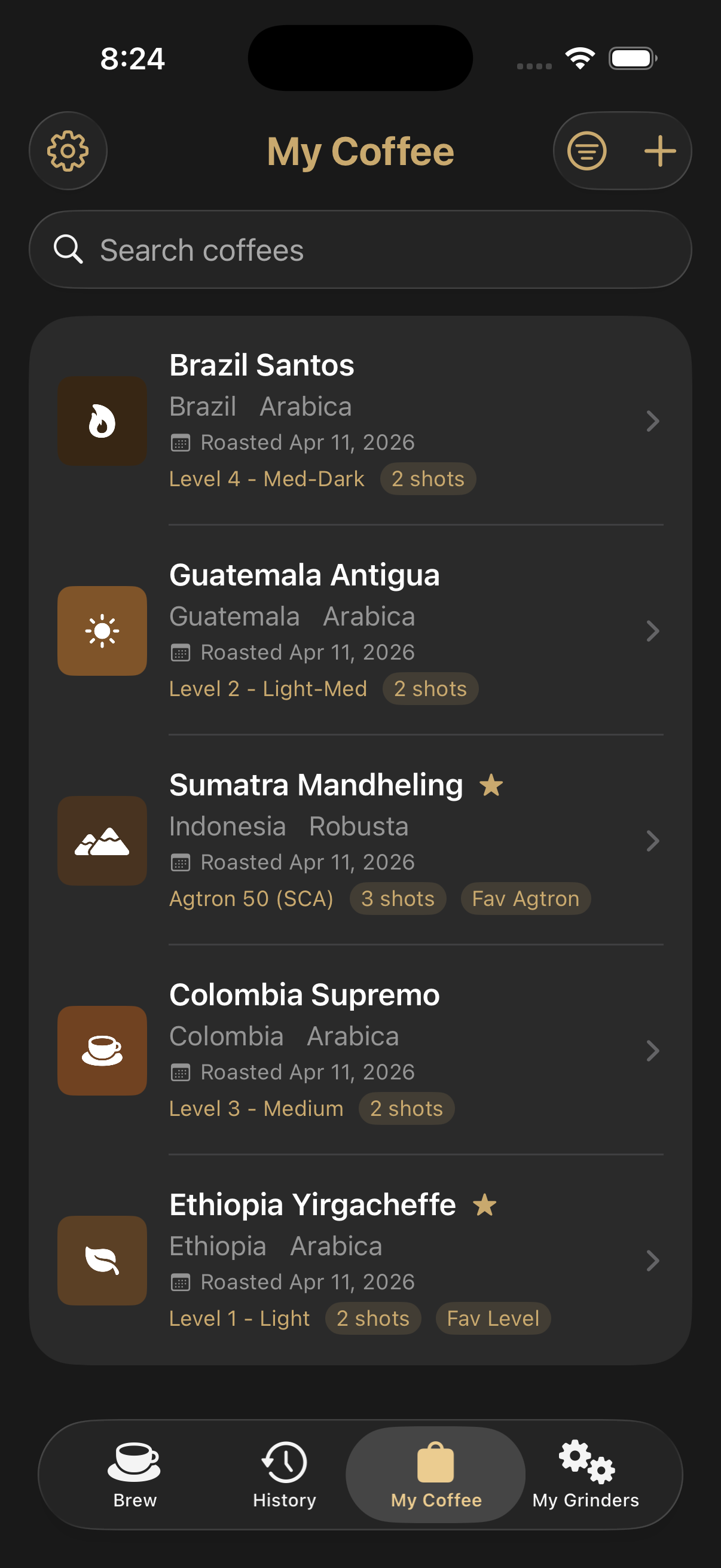
In the coffee selection list, tap the star to mark a favorite. It auto-loads when you switch to that mode. Favorites are independent for Roast Level and Agtron modes.
Each coffee bag can have a default grinder and burr setting. When you select that coffee in the Brew tab and log a shot, the grinder info is pre-filled automatically.
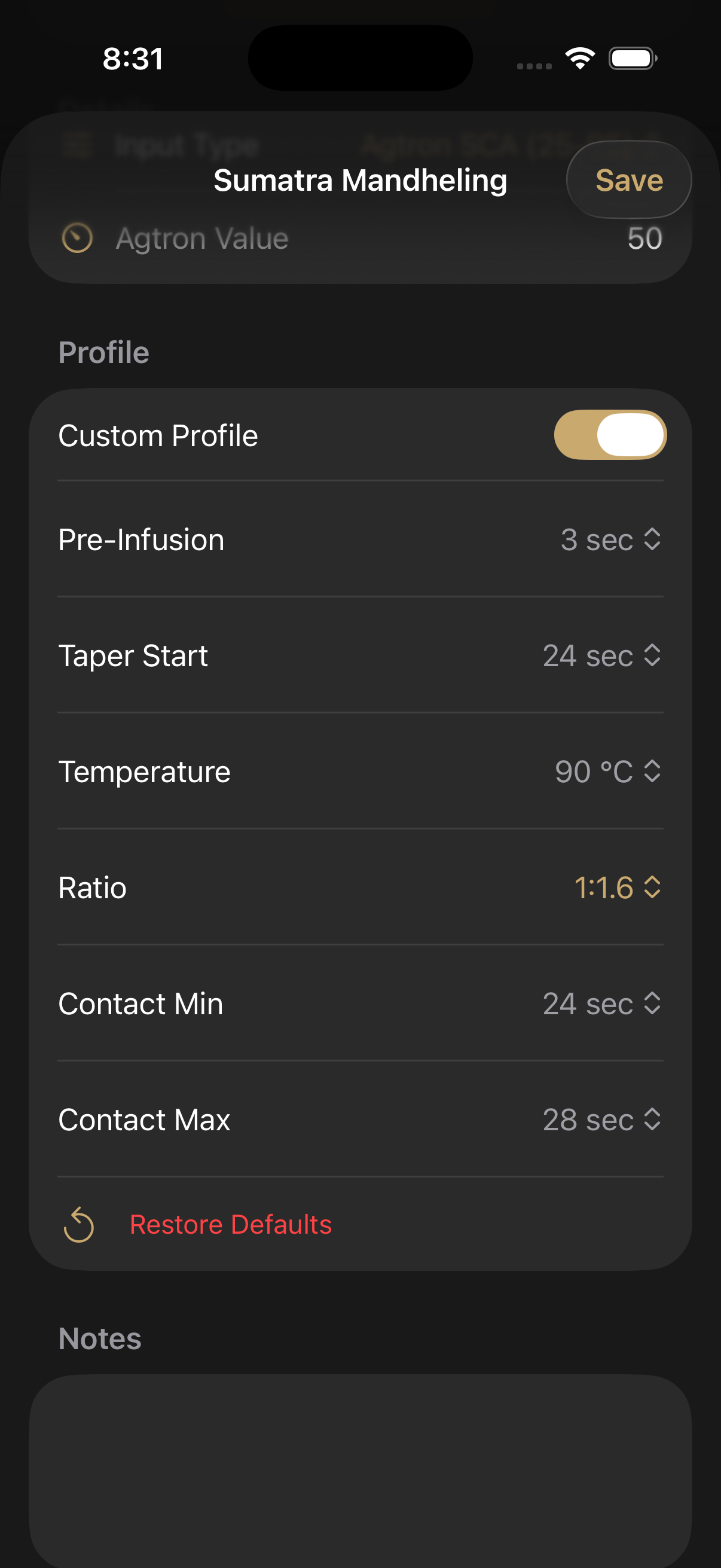
Premium users can create a custom profile for each coffee bag. This lets you save per-coffee overrides for pre-infusion, taper start, temperature, ratio, and contact time. When you select that coffee, its profile values auto-populate the results.
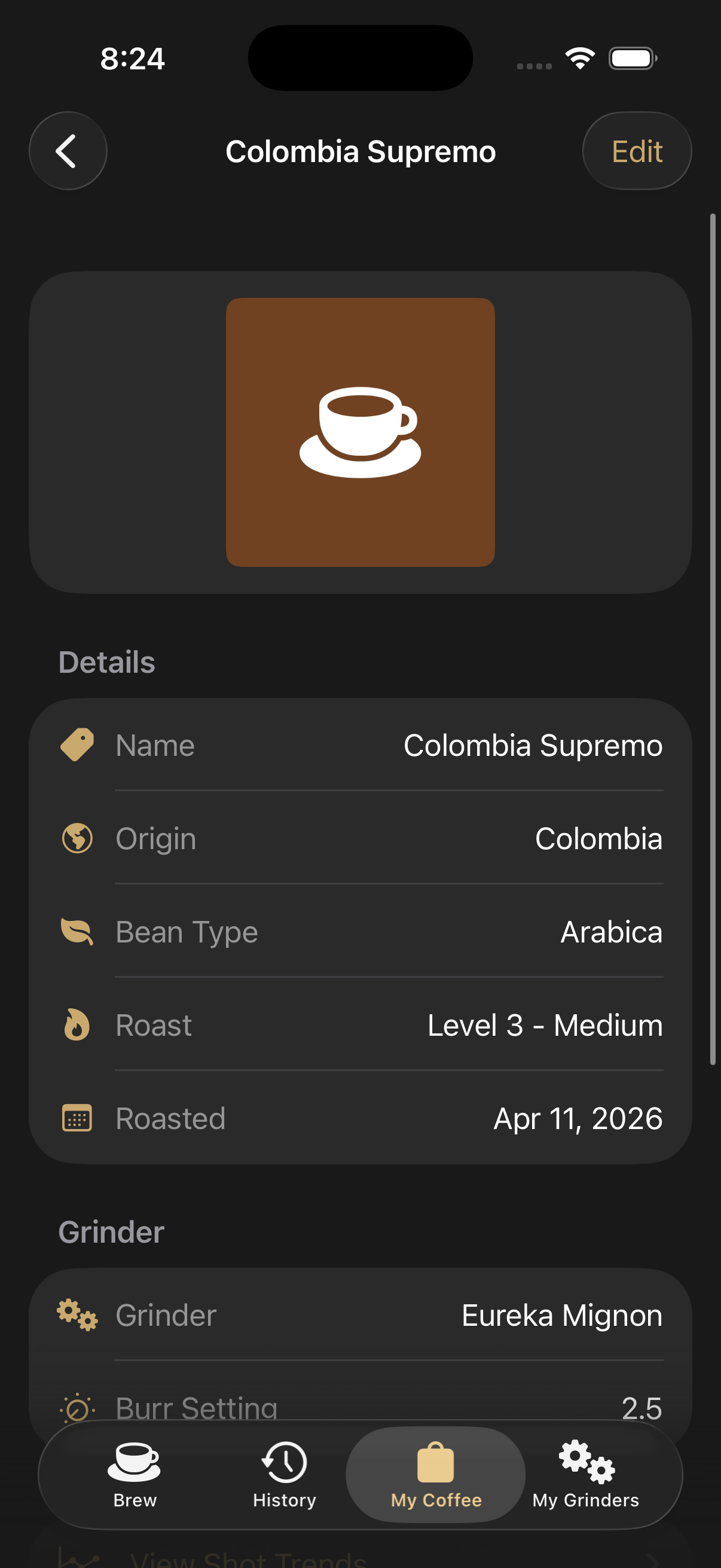
Each coffee bag has a Notes section where you can record tasting notes, brewing observations, or any details about the bag. Notes are saved automatically when you save the coffee.
Coffee profiles are great for dialing in a specific bag. Once you find settings that work, save them to the profile so you don't have to adjust pickers every time.
Tap the expand arrow on the results card to see every parameter: roast type, roasting scale, pre-infusion, taper start, temperature, ratio, yield, and contact time. Tap Log This Shot at the bottom to open the shot log form.
In the shot log, select your coffee, rate the taste profile on the sour-to-bitter scale, adjust final yield and contact time to match what actually happened, and optionally record TDS. The Extraction Yield (EY%) is calculated automatically. You can also select your grinder and burr setting.
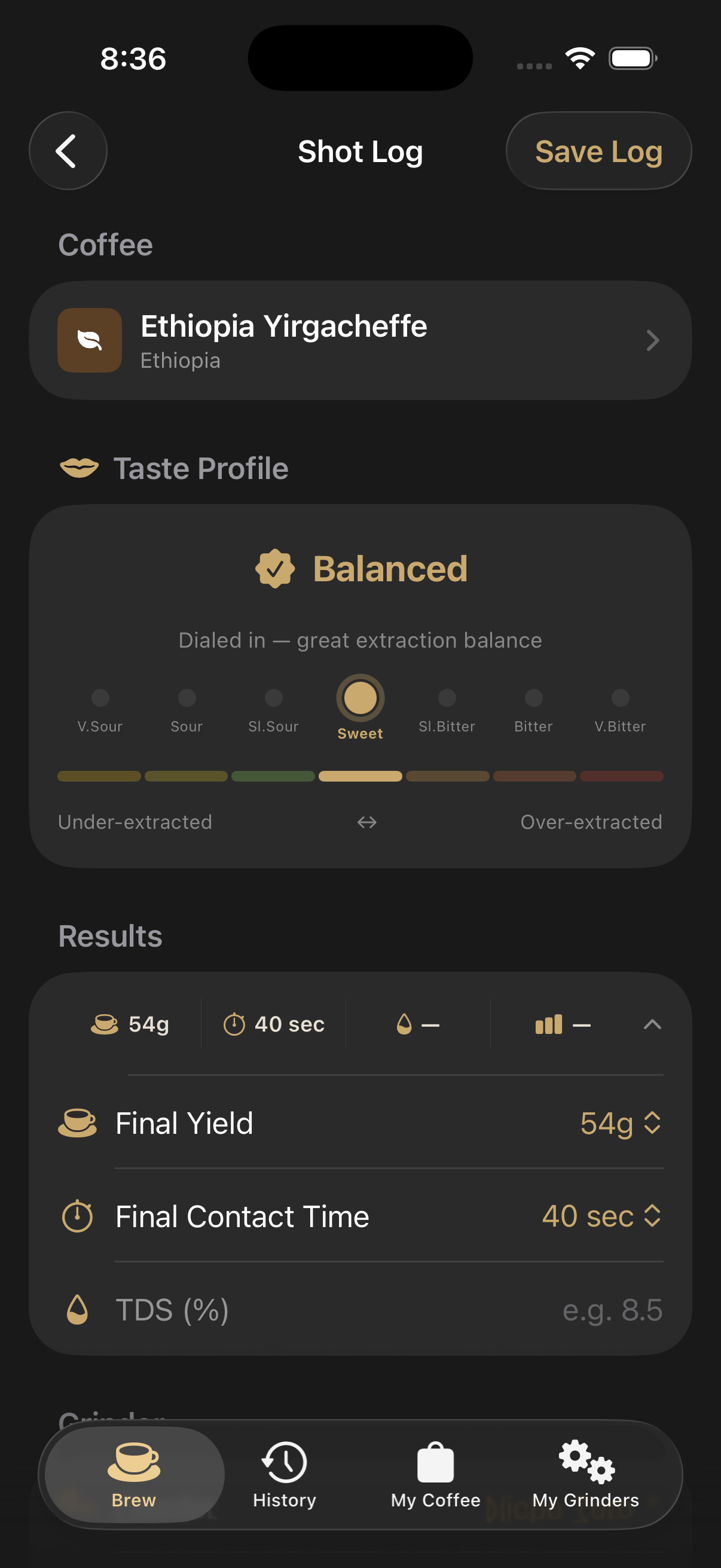
Use the Taste Profile picker to rate each shot on a sour-to-bitter spectrum. Choose from 7 levels: Very Sour, Sour, Slightly Sour, Sweet (balanced), Slightly Bitter, Bitter, or Very Bitter. Each level includes a brewing hint to help you adjust. The taste badge appears on all shot lists and history.
Use the Notes section in the shot log to record flavors, observations, or adjustments you want to remember for next time.
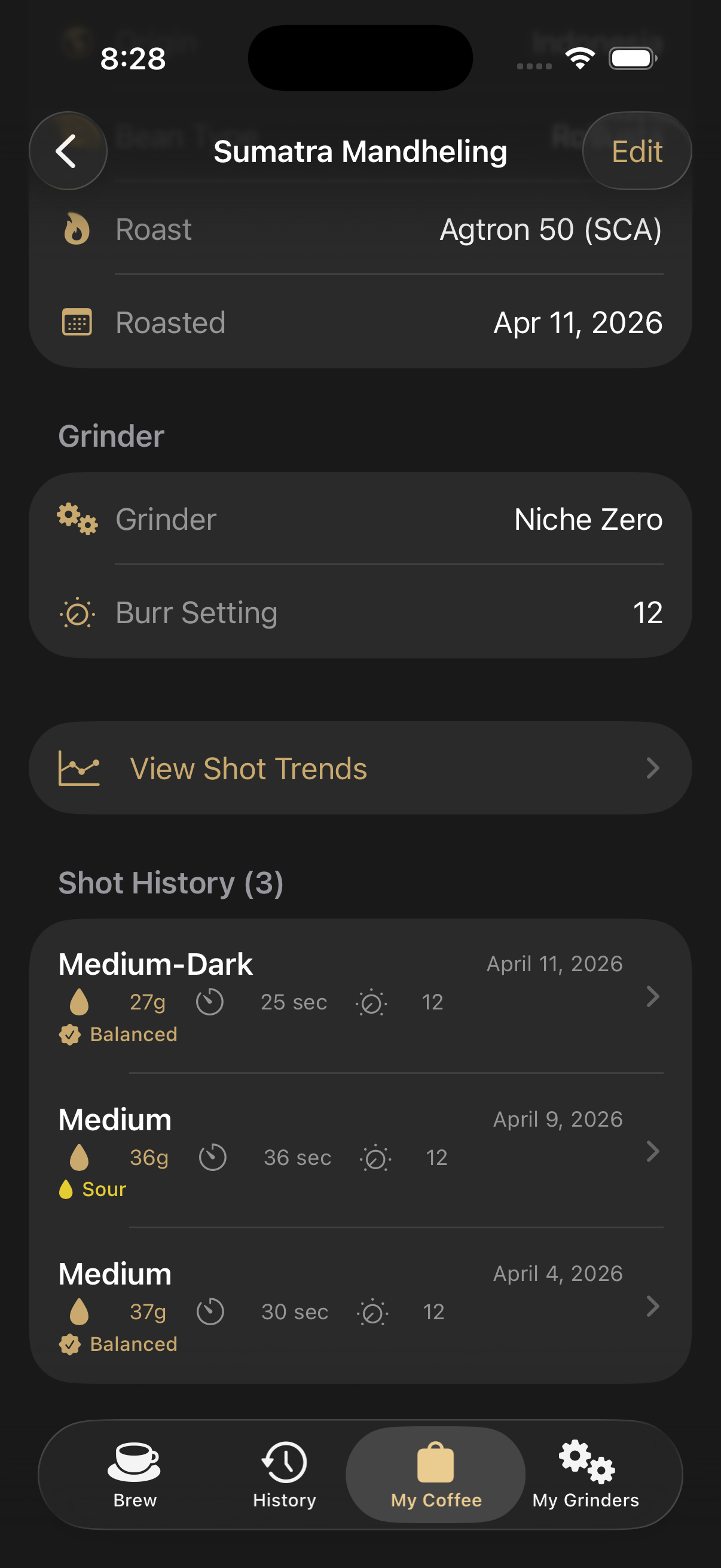
Open any coffee bag to see its 5 most recent shots with taste profile badges. Tap "See All Shots" to view the complete history for that coffee with search, date filters, and CSV export.
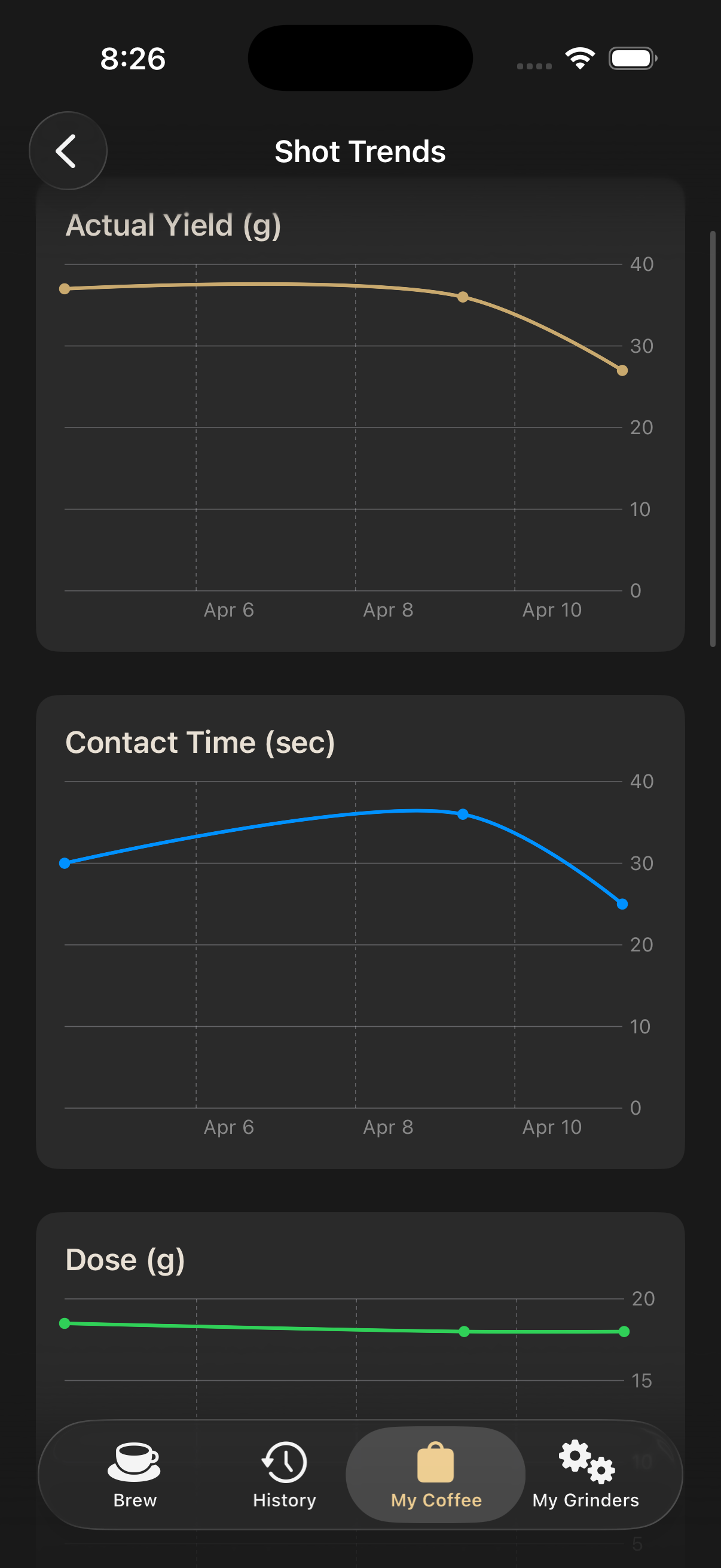
Premium users can tap View Shot Trends from a coffee's edit page to see charts tracking actual yield, contact time, dose, TDS, extraction yield, and taste profile over time. The taste chart highlights the balanced zone and color-codes each point. A summary section shows averages, ranges, and balanced shot counts.
Use the History tab to see all shots across all coffees with taste profile badges. The header shows weekly shot count, average EY%, and your top coffee. Search by coffee name, roast type, grinder, or notes. Filter by date (All, This Week, This Month). Shots are grouped by day and month. Use Select mode for batch deletion, or export filtered shots as CSV.
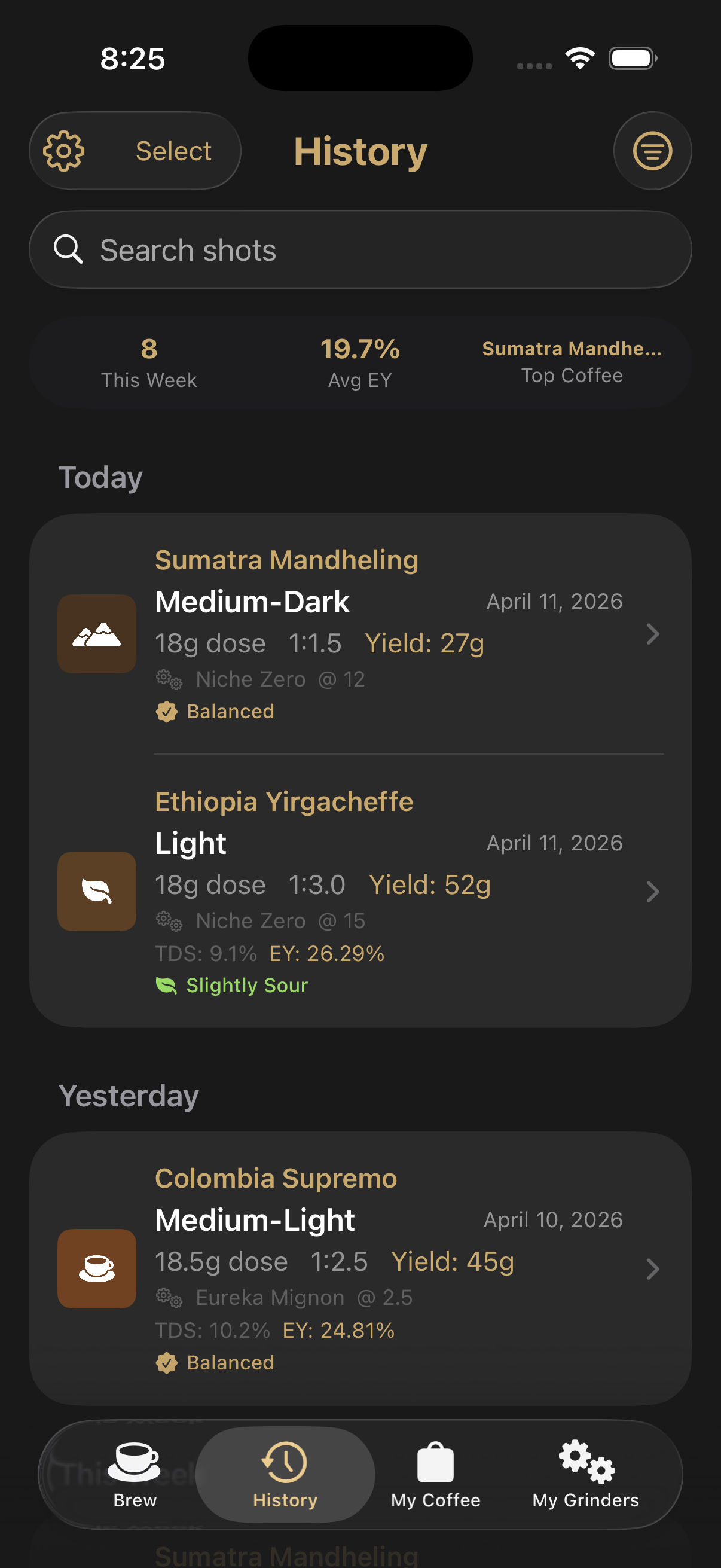
Consistently logging shots helps you spot patterns. If a coffee always runs sour at the suggested temp, you'll know to bump it up next time.
Use the My Grinders tab to save your grinders with name, brand, default burr setting, notes, and a photo. You can take a photo, choose from your library, or pick from preset grinder illustrations.
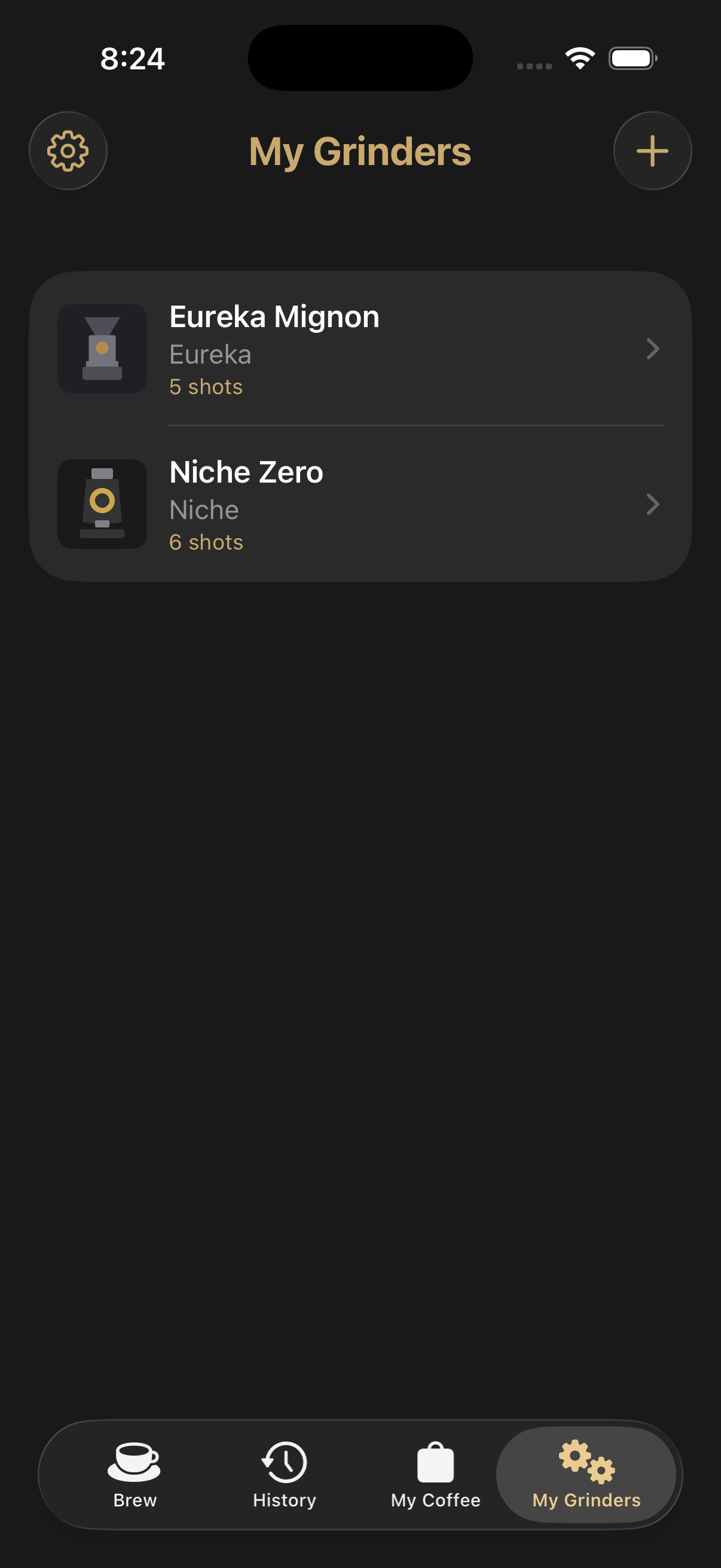
When logging a shot, select a grinder and set the burr setting. If a coffee has a default grinder assigned, it will be pre-selected automatically.
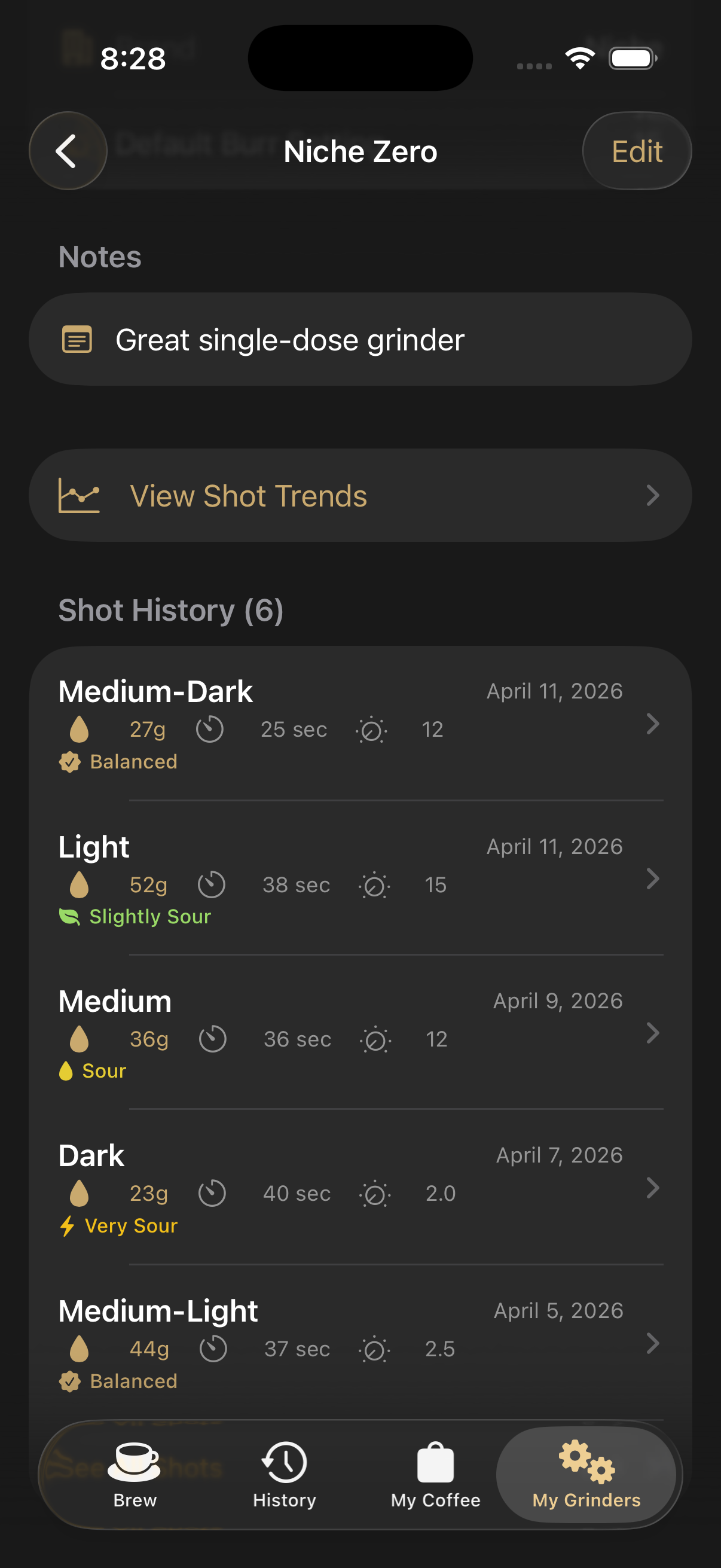
Open any grinder to see its 5 most recent shots with taste profile badges. Tap "See All Shots" to view the full history with search, date filters, and CSV export.
Premium users can view Shot Trends from a grinder's detail page. Charts include taste profile trends alongside yield, contact time, and TDS. Filter dynamically by date range, coffee, or burr setting to compare performance across different beans and grind adjustments.
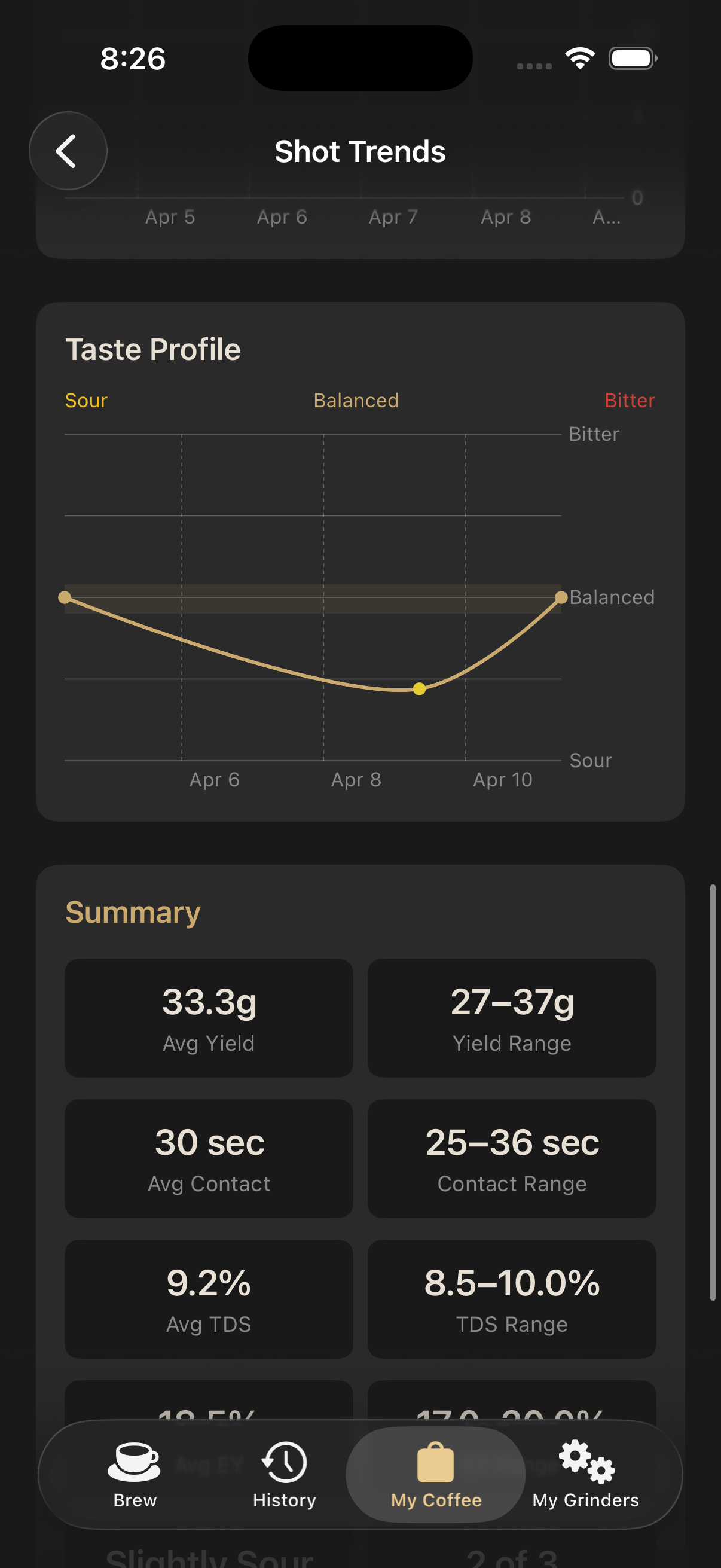
Use the grinder trend filters to compare how the same grinder performs with different coffees or burr settings. This helps you find the sweet spot faster when switching beans.
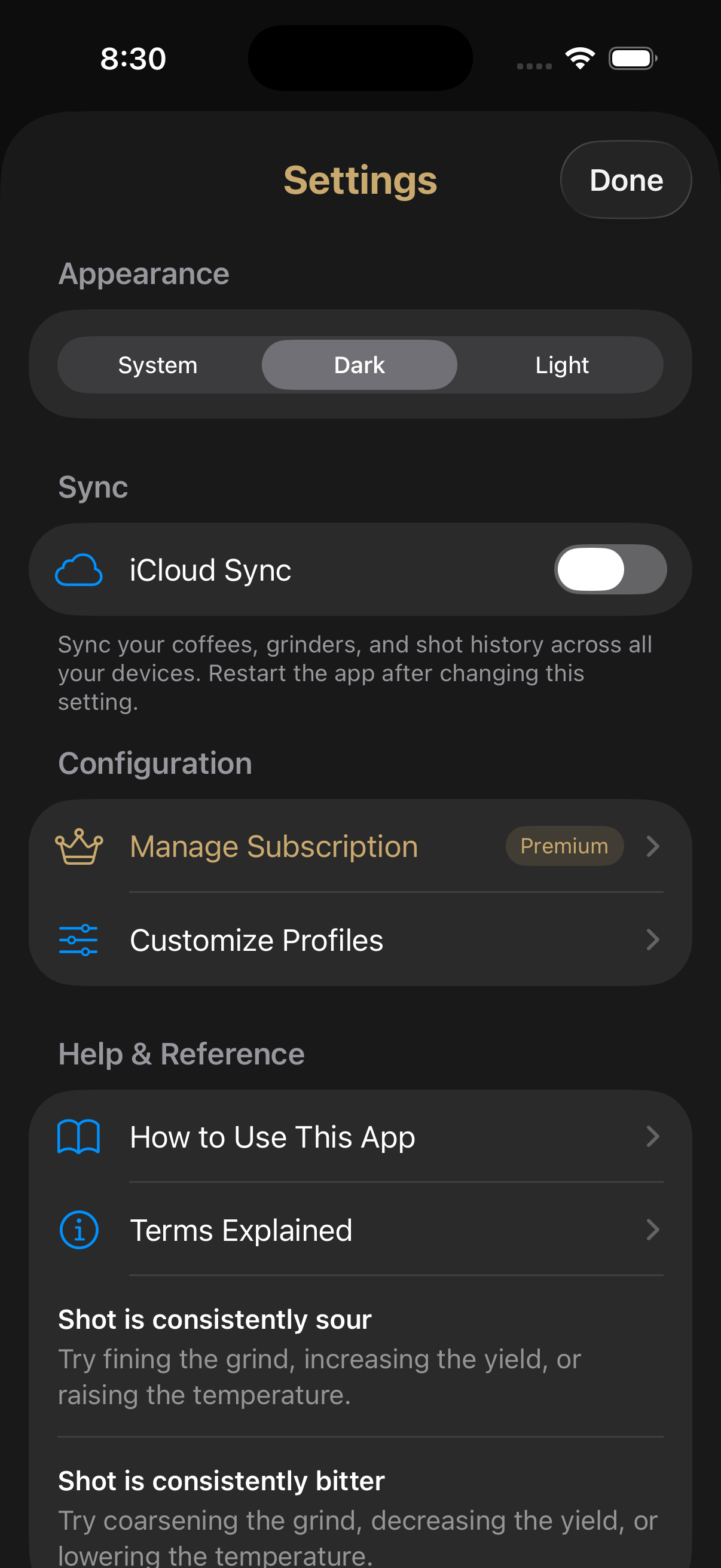
Tap the gear icon in the top-left corner of any tab to open Settings. From there you can switch between System, Dark and Light appearance, toggle iCloud sync, manage your subscription, customize profiles, and access the how-to guide and terms glossary.
In Settings > Customize Profiles, premium users can adjust pre-infusion, taper start, temperature, ratio, contact min and contact max for each roast level. Changes apply everywhere in the app. Use Reset to restore original defaults at any time.
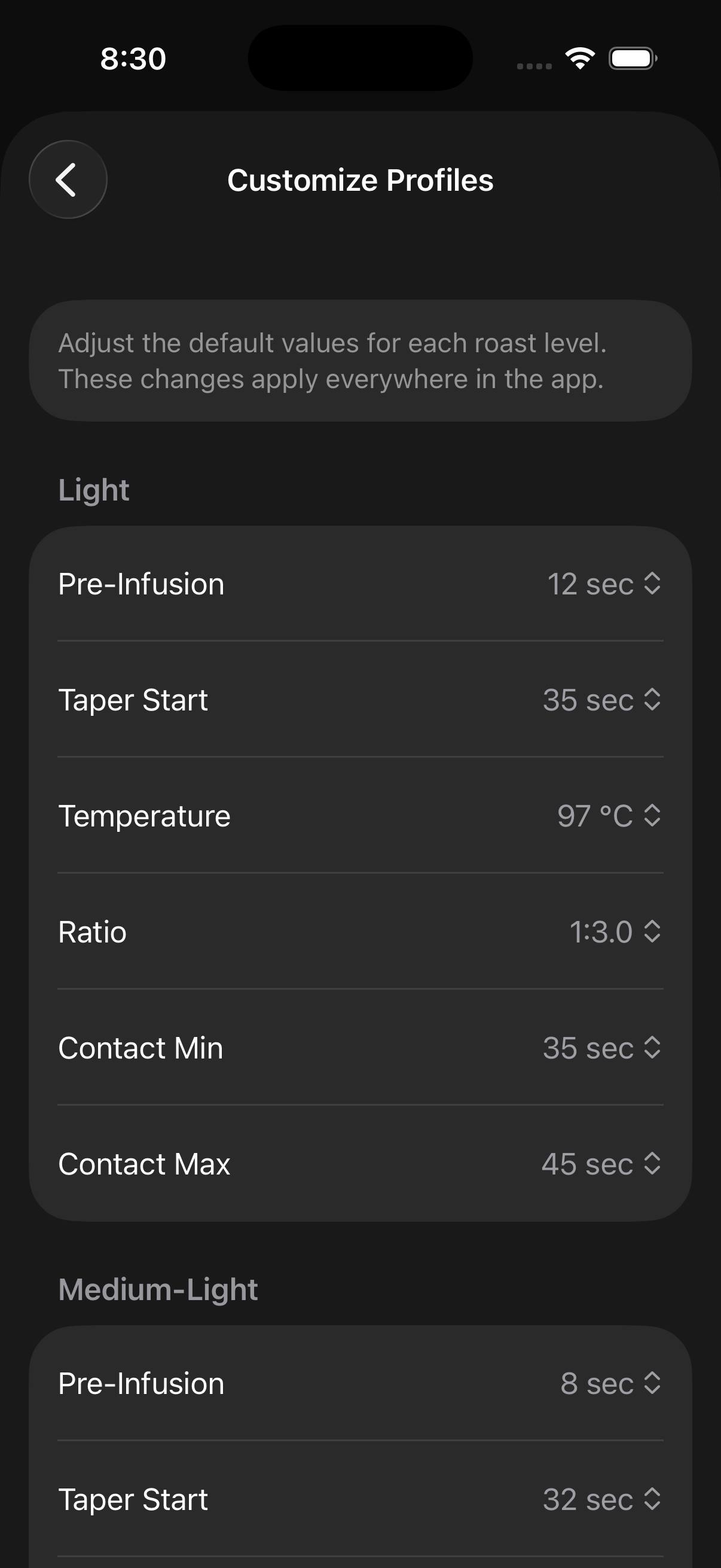
Global profiles change the baseline for all coffees at a given roast level. Per-coffee profiles let you toggle a Custom Profile switch and set per-coffee overrides for pre-infusion, taper start, temperature, ratio, contact min and contact max. Per-coffee overrides take priority when that coffee is selected. Use Restore Defaults to reset.
Use the search bar in My Coffee to find bags by name, origin, or bean type. Sort by Date Added, Name, Roast Date, or Most Used via the menu icon.
Swipe right on a coffee to archive it. Archived coffees are hidden from the main list and selection pickers but not deleted. Toggle "Show Archived" in the menu to view them. Swipe right again to unarchive.
Enable iCloud Sync in Settings to sync your coffees, grinders, and shot history across all your devices. Restart the app after toggling this setting.
Change only one variable at a time when dialing in. This makes it easier to identify what improved (or worsened) the shot.